
How to connect an account
How to connect an account
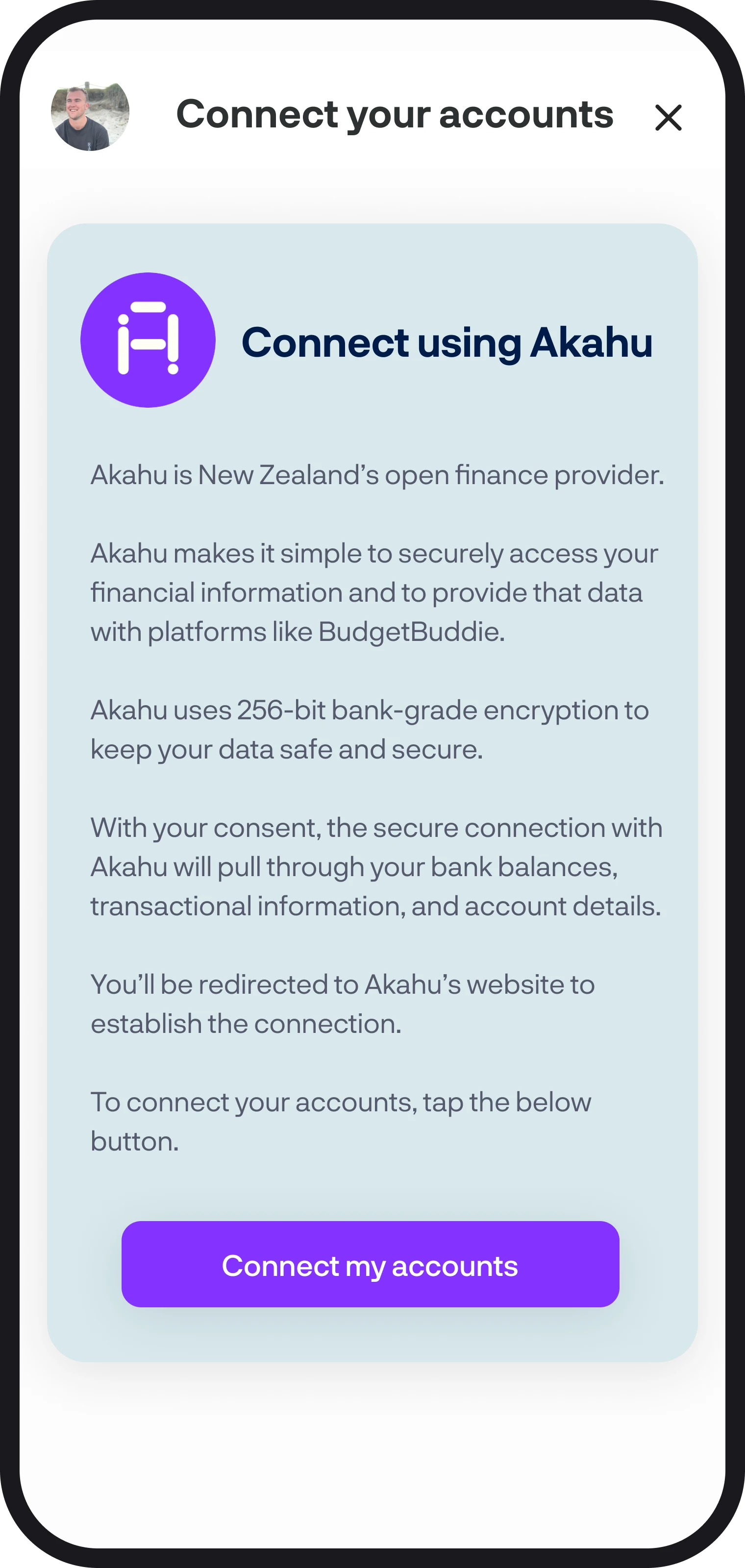
Connecting your accounts to BudgetBuddie is super simple; here in this guide, we'll walk you through every step of how to connect your accounts using Akahu.
1. Navigate to connect your accounts
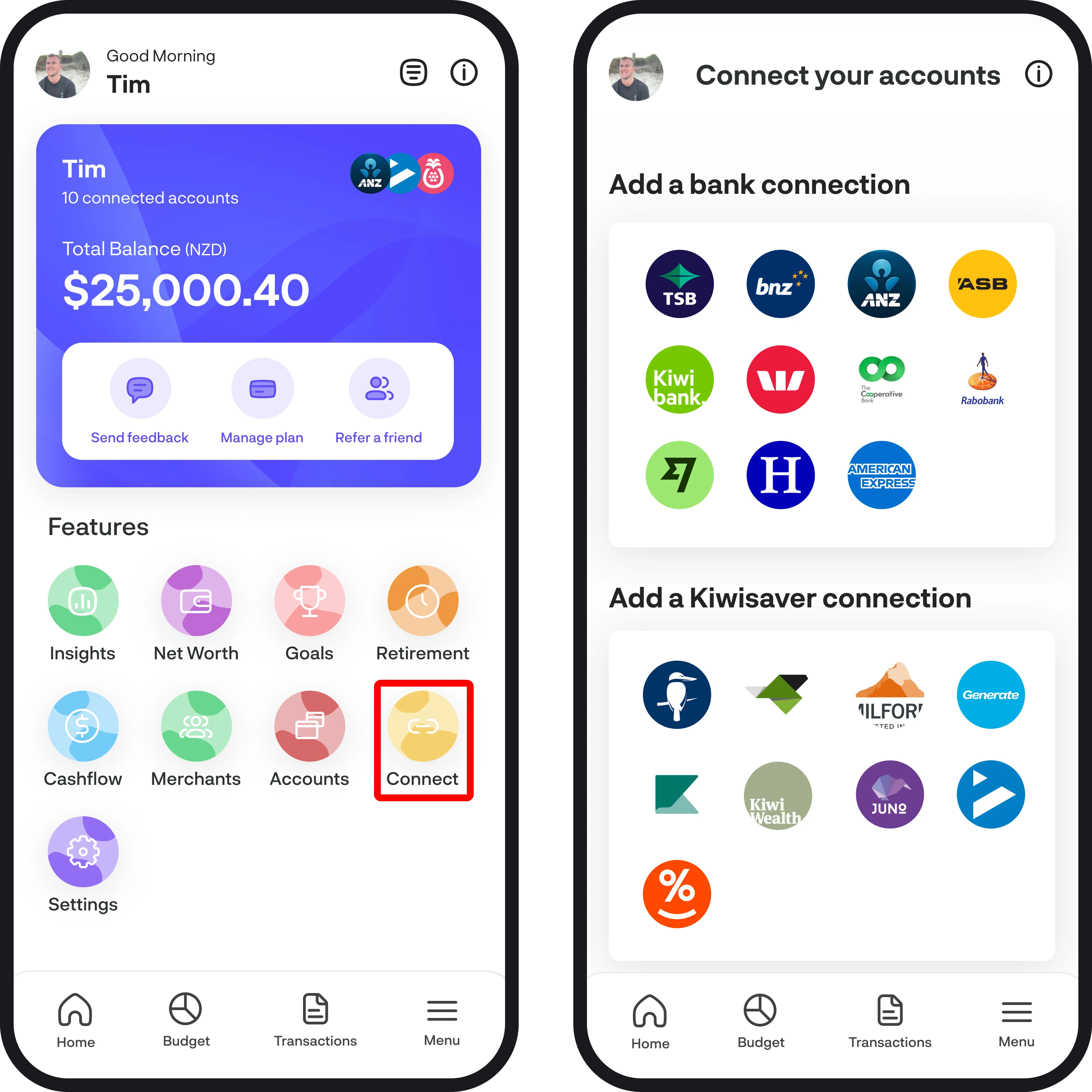
In the menu, open the Connect Accounts feature by selecting it as highlighted in red below.
2. Connect an account
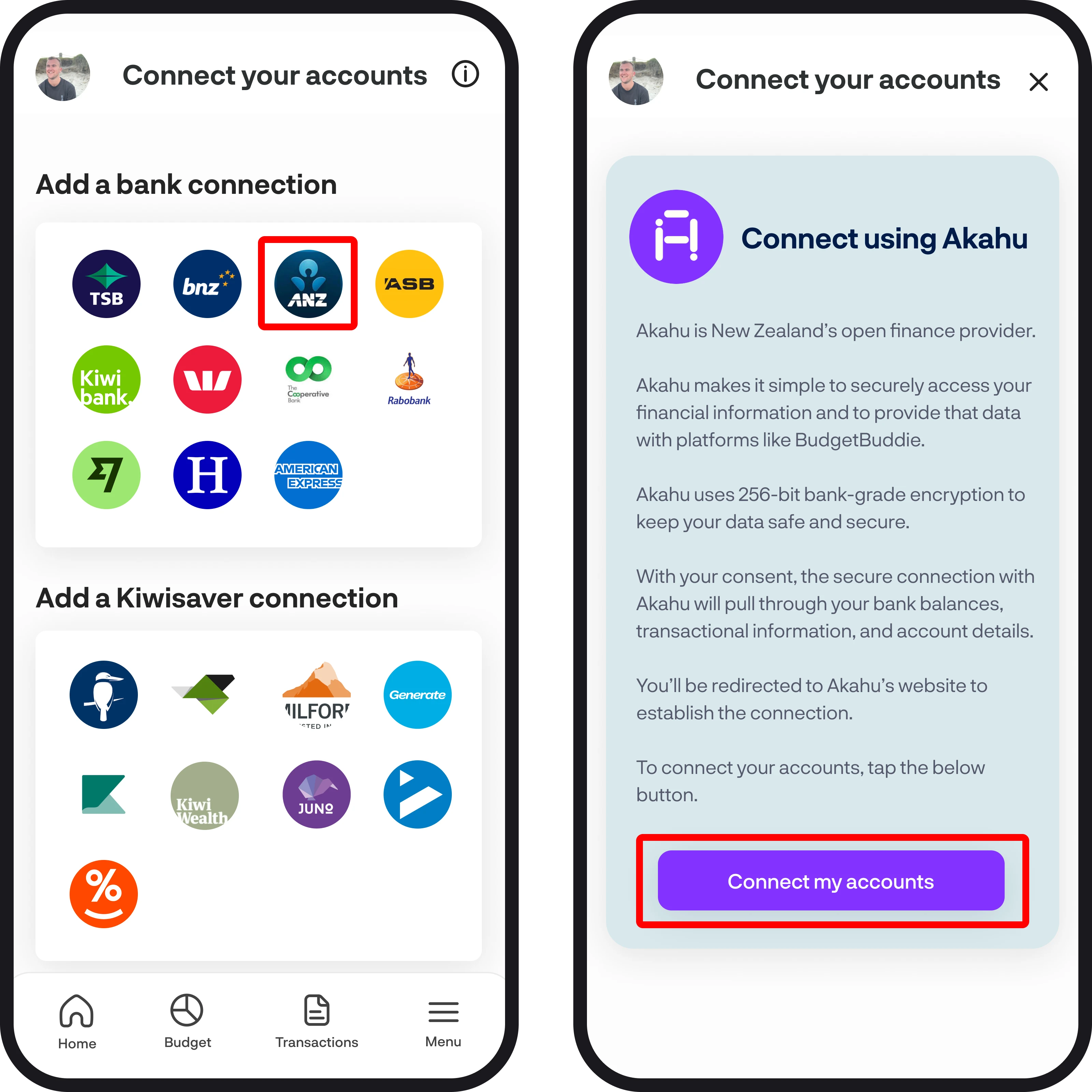
To connect to a bank, Kiwisaver, or share portfolio connection, simply tap on the icon of the provider you want to connect with. This will then bring you to a screen to connect using Akahu. Here, we'll give you an overview of who Akahu are and how the connection works. Once you're ready to continue with the connection, simply tap on the 'Connect my accounts' button.
3. Connect and verify with Akaku
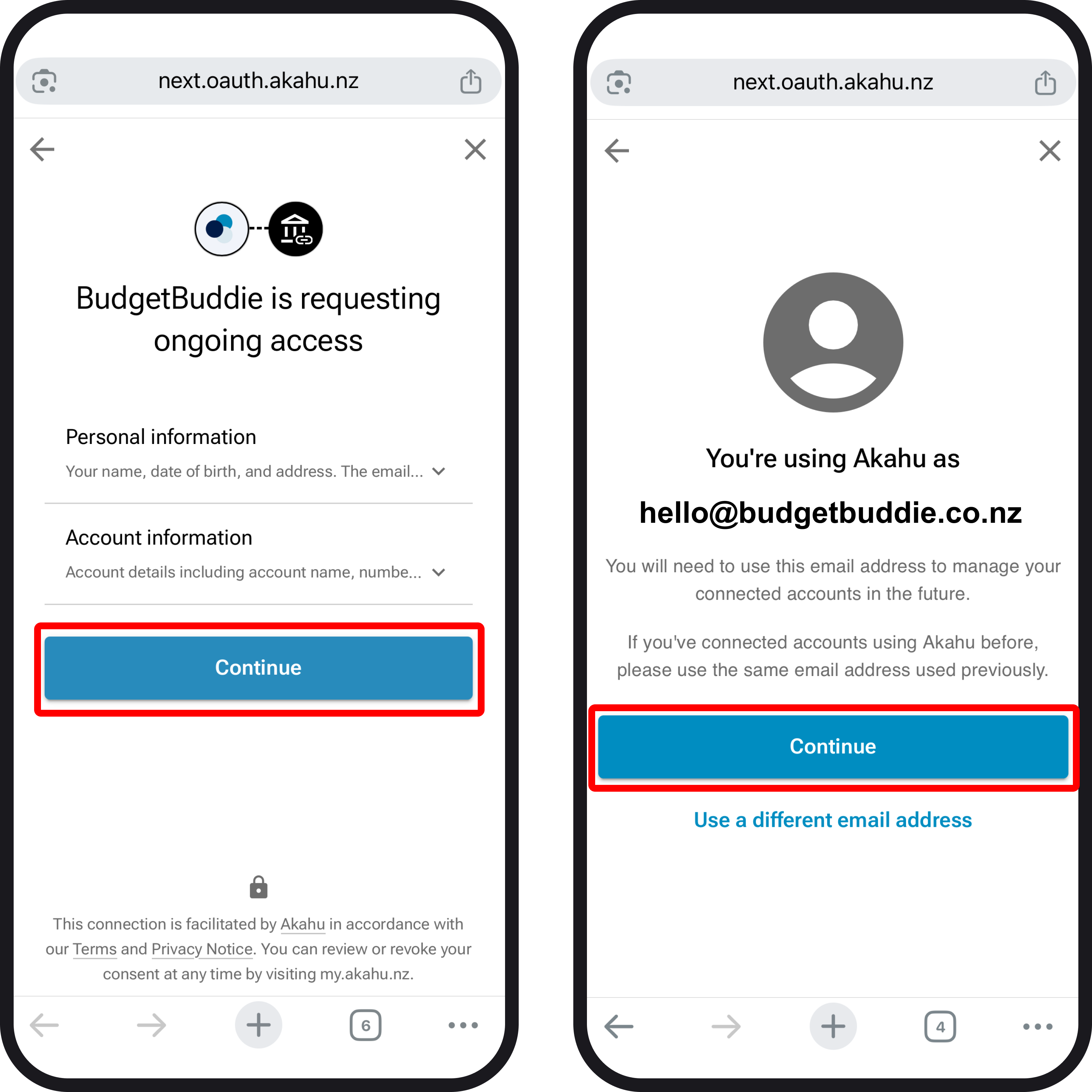
Once you tap 'Connect my accounts', it'll open up Akahu, where you'll need to verify your email. We'll break down each step below:
Getting connected:
To start the Akaku verification flow, tap the blue continue button, and you'll then see your email to use in order to continue with the connection. We recommend using the same email as what you see on this screen, but if you'd like to use a different email, simply tap on 'Use a different email address' and then enter your different email address.
Getting verified:
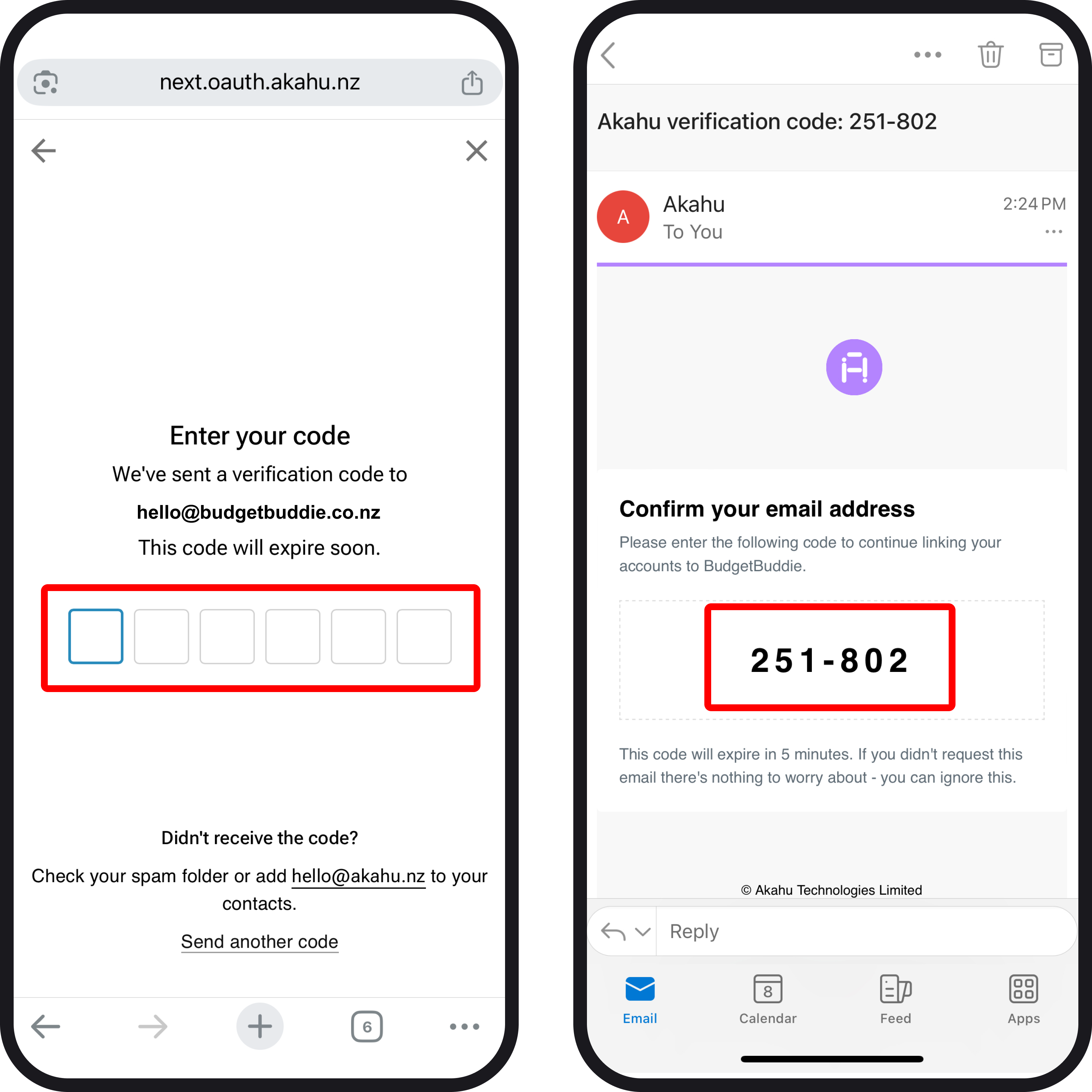
Akahu will now send a 6-digit code to the nominated email you're using for the connection. Check your email for the code, and then enter it in the empty fields highlighted below in red.
4. Select a provider & set up the connection
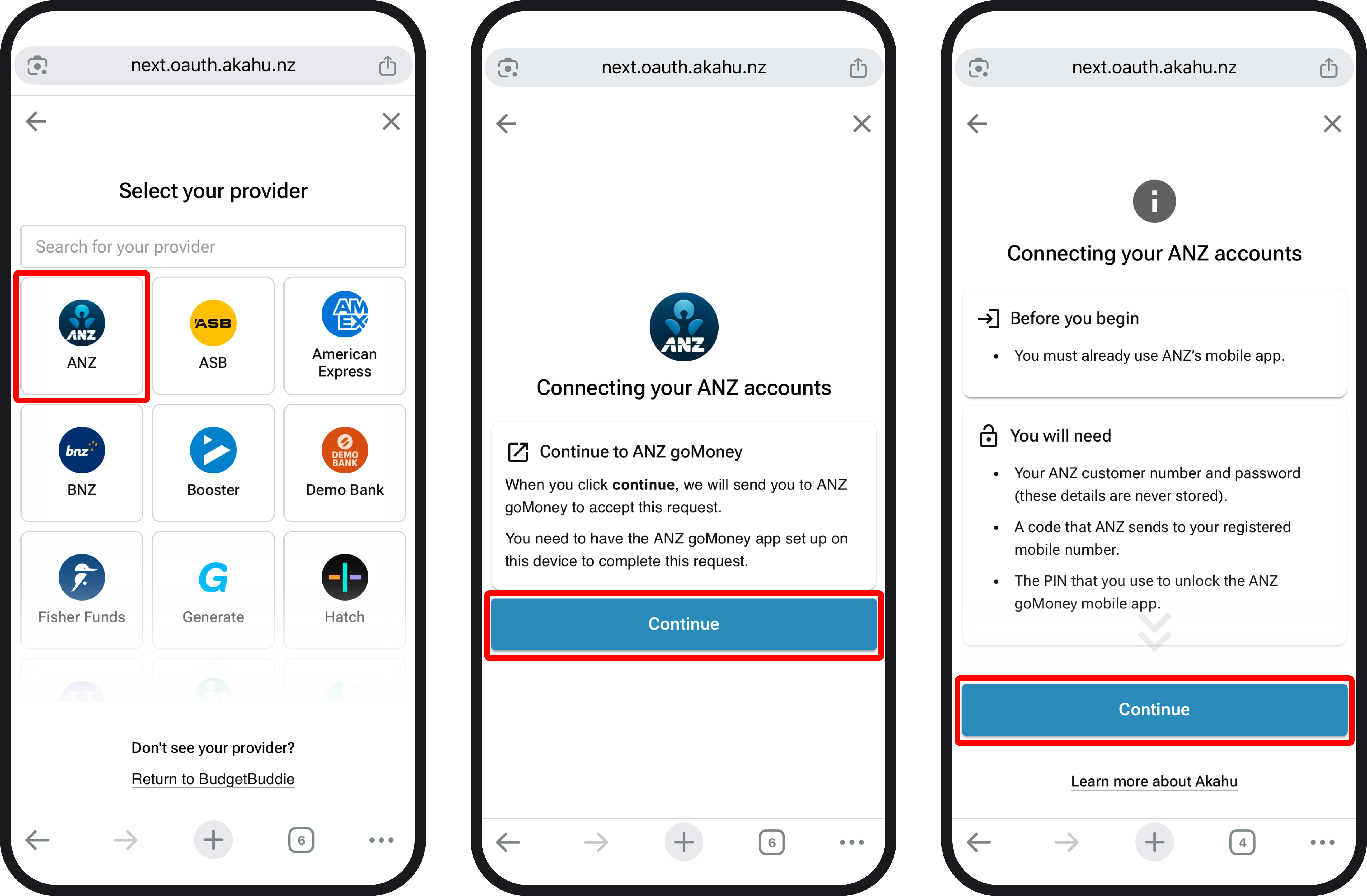
Once you've verified the email you're using for your Akahu account, select which provider you'd like to initiate a connection with. If you select a bank that allows open banking connections, you'll then be directed to your bank's mobile app to set up the connection and then redirected back to Akahu. If your selected provider does not use open banking, you'll then be prompted to go through the Akahu connection screens and enter your credentials for that provider to initiate the connection. Below are examples of both open banking (middle) & classic (right) connection screens.
5. Select your accounts to connect to BudgetBuddie
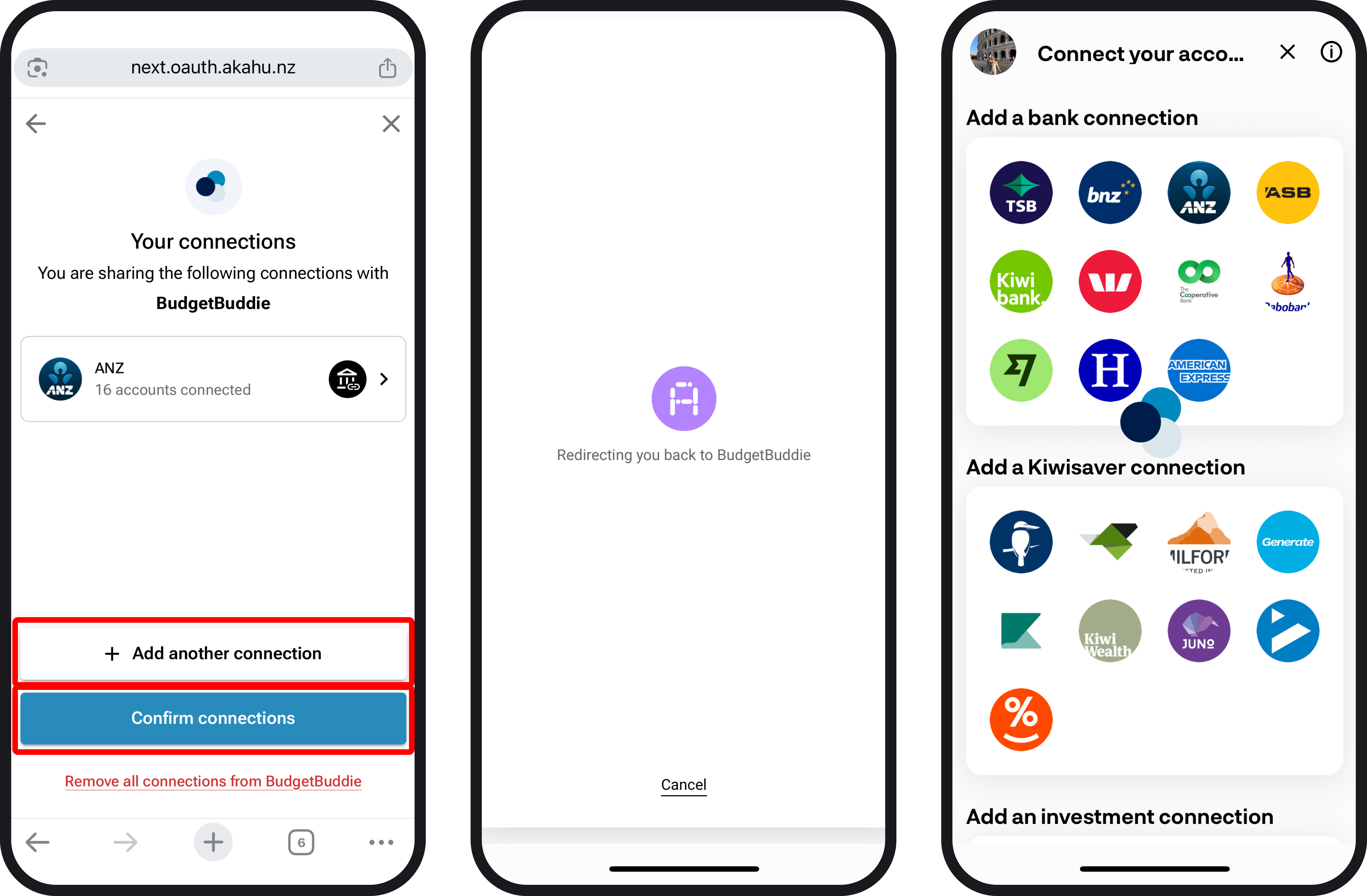
Select which accounts you'd like to connect to BudgetBuddie either via your banks mobile app if you're connecting via open banking, or in the Akahu connection flow if your not using open banking. Once you've finished, simply tap 'Confirm connections'. Alternatively, if you'd like to connect more accounts, tap the 'Add another connection' button, and you'll be taken to the same select a provider screen as step 4.
Once you've confirmed your connection, you'll be redirected back to BudgetBuddie, where we'll load in your account balances along with transactions if the account you've connected has any.
6. Load times for open banking connections
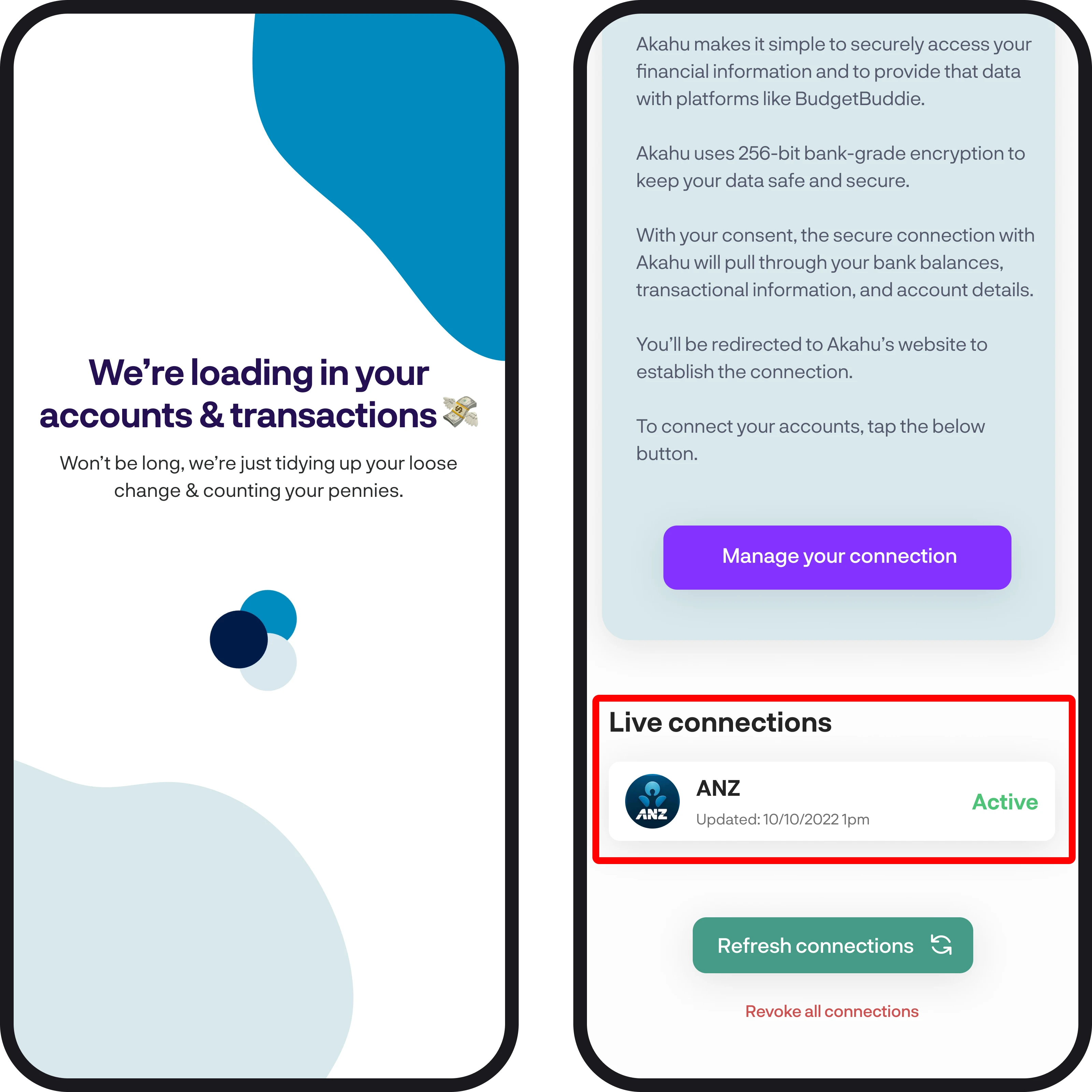
Once you're connected, we'll start to load in your account balances and transactions. Just a heads up, some open banking connections can take up to 3-5 minutes for 12 months of transactions to be loaded in to the app. We'll signal that transactions are loading by showing a loader in the top right of the transactions feature. While that's loading in, you can set up and work on other features. But if you'd like to close the app, you can still do so, and your transactions will continue to load in, in the background, so next time you log in, everything will be there.
7. You're all connected 🎉
You're now all connected! Once your connected account finishes loading, you can view the connection at the very bottom of the Connect Your Accounts screen.
You're all ready to go 🎉
Woohoo! You've successfully connected your accounts. If you run into any issues while getting connected, feel free to get in touch with us at hello@budgetbuddie.co.nz.