
How to switch to zero-based budgeting
How to switch to zero-based budgeting
Zero-based means every dollar gets a job. Money from the accounts you select sits in Available to assign, then you give it to expense categories and credit cards.
1. A quick summary
The method and period for all regular budgets are set in Budget settings, not when you add a single budget.
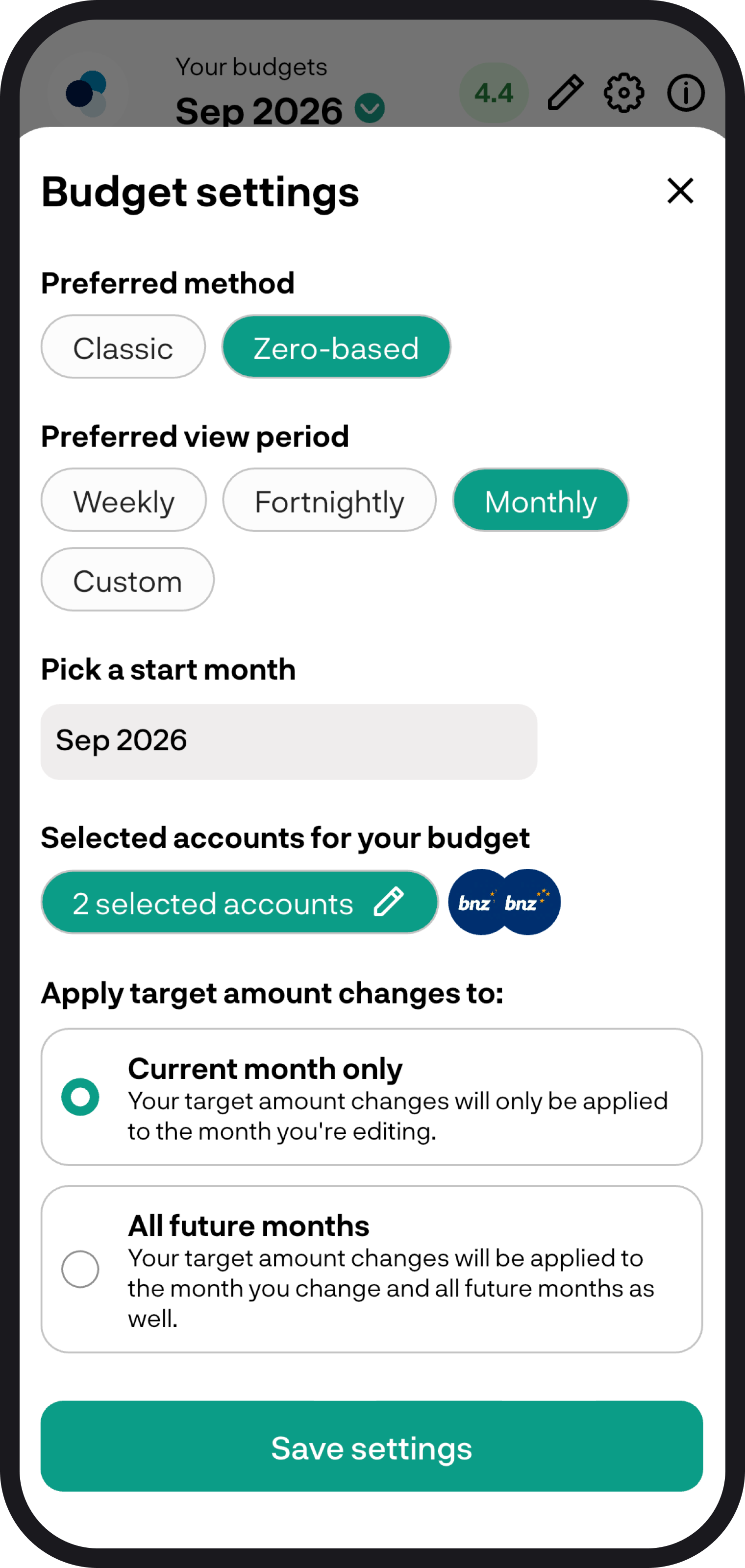
Switch Preferred method to Zero-based, pick weekly, fortnightly, monthly, or custom, then pick a start date and which accounts feed this budget.
2. Open Budget settings
Open Budget from the sidebar or the Budget tab, then open Budget settings.
3. Switch the method
Under Preferred method, tap Zero-based.
Then set:
- 1. Preferred view period - weekly, fortnightly, monthly, or custom
- 2. Start date - leftover, overspend, and inflows do not come from any period before this date
- 3. Accounts - which accounts feed this budget. Inflows from those accounts add to Available to assign. Credit cards you include get their own section
Save your settings.
4. Set targets, then assign
Targets are the plan. Assigned is what you have actually given.
Use Edit targets or Quick add to set what you plan to put aside this period, then type an assigned amount on each category. That money leaves Available to assign and becomes Available in that category.
For how the rest of zero-based works, read Zero-based budgeting overview.
You're all ready to go
Woohoo! You've just switched to zero-based. If you run into any issues while setting everything up, feel free to get in touch with us at hello@budgetbuddie.co.nz